Generate Early bound Class using CrmSvcUtil.Exe in CRM

CrmSvcUtil.exe is a command-line code generation tool for use with Microsoft Dynamics CRM. This tool generates Early bound class in C# with Custom entities and attributes. Provides Intellisense Support.

Follow the below steps to create early bound class,

Step 1: Download Latest CRM SDK.

Step 2: Open Run and type cmd.

Step 3: In SDK\bin, we can see crmsvcutil.exe. Now provide the path “CRM\SDK\bin” in command prompt.

Example: I have downloaded the CRM SDK on my desktop. So, path in command prompt will be like below,

Crmsvcutil - CMD

Step 4: Now we have to execute crmsvcutil.exe from command prompt with the following command,

CrmSvcUtil.exe
/url:<Organization Service>
out:<Class Name>.cs
/username:"<User Id>"
/password:"<Password>"
/namespace:<Namespace>
/serviceContextName:<Context Name>
Parameter Description
Organization Service Provide Organization Service. Goto Microsoft Dynamics CRM ->Settings -> Customizations -> Organization Service.
Class Name Provide Output Class Name. Ex: D:\OutputFile.cs
User Id Provide Online 365 User Id or On-Premise domain\userid .
Password Provide Password.
Namespace Provide Namespace name.
Context Name Provide Context Name.

Example:

CrmSvcUtil.exe /url:https://OrgName.api.crm5.dynamics.com/XRMServices/2011/Organization.svc /out:C:\Users\arunpotti\Desktop\EarlyBound.cs /username:"arunpotti@OrgName.onmicrosoft.com" /password:"password" /namespace:earlybound /serviceContextName:ServiceContext

Step 5: Paste the command line in command prompt and click on enter to generate class file.

Crmsvcutil - CMD line

Please provide your valuable comments on this article.

Set custom WhatsApp icon for custom Case Origin in CRM

In Case entity, for Origin field we can create custom icons to show them in Views, For instance you can see the below icons for Origin like Phone, Email and Web.

Case Home page grid Sample

Let us create a Custom Icon “WhatsApp”, and follow the below steps,

Step 1: Open Microsoft Dynamics CRM Online/On-Premise, and go to Settings -> Customizations. Click on Customizations.

Step 2: Go to Entities -> Case -> Fields. Open Origin OptionSet Field.

Origin Field in Case Entity

Step 3: Click on Edit and Create new Option and provide label as WhatsApp and Keep the default Value as 100000000.

WhatsApp Option Creation in Origin OptionSet

Step 4: Now our target is to show WhatsApp icon in view. So, create a new Web Resource of type PNG.

Before creating web resource, we should follow below points,

  1. Web Resource Name should start with prefix new.
  2. Name should be Incident_origincode_icon<WhatsApp OptionSet Value>.png.

In our example, WhatsApp OptionSet value is 100000000.

So our web Resource name is Incident_origincode_icon100000000.png

Click Here to download WhatsApp 16 X 16 PNG image.

After downloading, browse for the image in web resource. Save & Publish.

Incident Webresource

Step 5: Click on Create and click Case to create case record.

Quick Create Navigation

Provide the details and select Origin as “WhatsApp” and Save,

Case record Creation

Step 6: Finally Go to Microsoft Dynamics CRM -> Services -> Cases, to see list of cases in Home page grid

Output

I think you enjoyed of doing this activity. Please Comment on this post.

You can check main MSDN Article here.

Thanks.

Read XML Web resource using C# & SDK in CRM

Let us see a simple example to read XML Web resource using Query Expression in Console Application,

Task: Read books.xml webresource and get all book titles.

books.xml

Solution:

Step 1: Create one Sample XML Webresource and name it as “new_books” in CRM. Click here to get XML.

Step 2: Include the below References in your visual Studio project, you can get the same from Latest SDK.

Goto the path, SDK -> Bin for the dlls

Microsoft.Crm.Sdk.Proxy
Microsoft.Xrm.Sdk

Step 3: Include the below Framework Assemblies in your project,

Reference Manager - ConnectToCRM

Step 4: Add the below namespaces in your class file,

using Microsoft.Crm.Sdk.Messages;
using Microsoft.Xrm.Sdk;
using Microsoft.Xrm.Sdk.Client;
using System.ServiceModel.Description;
using Microsoft.Xrm.Sdk.Query;

Step 5: First we have to connect to CRM, for details Click Here

Step 6: Next we have to use GetEntityCollection method to retrieve records, To Know more about this Click Here

private static EntityCollection GetEntityCollection(IOrganizationService service, string entityName, string attributeName, string attributeValue, ColumnSet cols)
{
QueryExpression query = new QueryExpression
{
EntityName = entityName,
ColumnSet = cols,
Criteria = new FilterExpression
{
Conditions =
{
new ConditionExpression
{
AttributeName = attributeName,
Operator = ConditionOperator.Equal,
Values = { attributeValue }
}
}
}
};
return service.RetrieveMultiple(query);
}

Step 7: We are going to use GetEntityCollection method as follows,

We are going to retrieve content from webresource entity. If we write the same in SQL it will be like this,

Select name, content from FilteredWebResource where name = ‘new_books’
EntityCollection ec = GetEntityCollection(_service, "webresource", "name", "new_books", new ColumnSet("name", "content"));

Step 8: Below method is useful for converting content binary data to string. Content will be encrypted in database, so we have to convert it into String format.

Note: Include MyOrganizationCrmSdkTypes.cs file in your project for WebResource Class.

You can get the same from the path SDK\SampleCode\CS\HelperCode.

private static string ConvertContentToXMLString(EntityCollection entCol)
{
WebResource webResource = null;
string webResourceContent = string.Empty;
webResource = (WebResource)entCol.Entities[0];
if (webResource.Attributes.Contains("content"))
{
byte[] binary = Convert.FromBase64String(webResource.Attributes["content"].ToString());
webResourceContent = UnicodeEncoding.UTF8.GetString(binary);
}
return webResourceContent;
}

Step 9: Below Method is useful for converting string to XMLDocument and pointing to correct node to get the result.

Note: nodeString parameter is for pointing to XML node. For our Example, we have to get title. So, nodestring will be /catalog/book/title

private static void DisplayXmlNodes(string webResourceContent, string nodeString)
{
XmlDocument xml = new XmlDocument();
xml.LoadXml(webResourceContent);
XmlNodeList xnList = xml.SelectNodes(nodeString);
string value = string.Empty;

if (xnList.Count > 0)
{
value += "Book Title\n--------------------------------------\n";
foreach (XmlNode xn in xnList)
{
value += xn.InnerText + "\n";
}
Console.WriteLine(value);
Console.ReadKey();
}
}

Step 10: So the final code is as follows,

using System;
using System.Collections.Generic;
using System.Linq;
using System.Text;
using System.Threading.Tasks;
using Microsoft.Xrm.Sdk;
using Microsoft.Xrm.Sdk.Client;
using System.ServiceModel.Description;
using Microsoft.Crm.Sdk.Messages;
using Microsoft.Xrm.Sdk.Query;
using System.Xml;

namespace Read_Webresource
{
class Program
{
static IOrganizationService _service;
static void Main(string[] args)
{
ConnectToMSCRM("arunpotti@XXXXXX.onmicrosoft.com","XXXXXX","https://XXXXXX.api.crm5.dynamics.com/XRMServices/2011/Organization.svc");
Guid userid = ((WhoAmIResponse)_service.Execute(new WhoAmIRequest())).UserId;
string content = string.Empty;

if (userid == Guid.Empty) return;//check for CRM Connection Establishe or not, if not return otherwise proceed to next step

EntityCollection ec = GetEntityCollection(_service, "webresource", "name", "new_sampleXMLfile", new ColumnSet("name", "content"));

if (ec.Entities[0].Attributes.Count > 0)
{
content = ConvertContentToXMLString(ec);
if (!string.IsNullOrEmpty(content))
DisplayXmlNodes(content, "/catalog/book/title");
}
}

private static void ConnectToMSCRM(string UserName, string Password, string SoapOrgServiceUri)
{
try
{
ClientCredentials credentials = new ClientCredentials();
credentials.UserName.UserName = UserName;
credentials.UserName.Password = Password;
Uri serviceUri = new Uri(SoapOrgServiceUri);
OrganizationServiceProxy proxy = new OrganizationServiceProxy(serviceUri, null, credentials, null);
proxy.EnableProxyTypes();
_service = (IOrganizationService)proxy;
}
catch (Exception ex)
{
Console.WriteLine("Error while connecting to CRM " + ex.Message);
Console.ReadKey();
}
}

private static EntityCollection GetEntityCollection(IOrganizationService service, string entityName, string attributeName, string attributeValue, ColumnSet cols)
{
QueryExpression query = new QueryExpression
{
EntityName = entityName,
ColumnSet = cols,
Criteria = new FilterExpression
{
Conditions =
{
new ConditionExpression
{
AttributeName = attributeName,
Operator = ConditionOperator.Equal,
Values = { attributeValue }
}
}
}
};
return service.RetrieveMultiple(query);
}

private static string ConvertContentToXMLString(EntityCollection entCol)
{
WebResource webResource = null;
string webResourceContent = string.Empty;
webResource = (WebResource)entCol.Entities[0];
if (webResource.Attributes.Contains("content"))
{
byte[] binary = Convert.FromBase64String(webResource.Attributes["content"].ToString());
webResourceContent = UnicodeEncoding.UTF8.GetString(binary);
}
return webResourceContent;
}

private static void DisplayXmlNodes(string webResourceContent, string nodeString)
{
XmlDocument xml = new XmlDocument();
xml.LoadXml(webResourceContent);
XmlNodeList xnList = xml.SelectNodes(nodeString);
string value = string.Empty;

if (xnList.Count > 0)
{
value += "Book Title\n--------------------------------------\n";
foreach (XmlNode xn in xnList)
{
value += xn.InnerText + "\n";
}
Console.WriteLine(value);
Console.ReadKey();
}
}
}
}

Step 11: Final Output is,

Read XML Web resource-Output

Please provide your valuable feedback.

Retrieve records using Query Expression & C# SDK in CRM

Let us see a simple example to retrieve records using Query Expression,

Task: Get a Contact record with the following values, where Full Name = Arun Potti

Retrieve Multiple - FetchXML SDK

Solution: Follow the below Steps,

Step 1: Include the below References in your project, you can get the same from Latest SDK.

Goto the path, SDK -> Bin for the dlls

Microsoft.Crm.Sdk.Proxy
Microsoft.Xrm.Sdk

Step 2: Include the below Framework Assemblies in your project,

Reference Manager - ConnectToCRM

Step 3: Add the below namespaces in your class file,

using Microsoft.Crm.Sdk.Messages;
using Microsoft.Xrm.Sdk;
using Microsoft.Xrm.Sdk.Client;
using System.ServiceModel.Description;
using Microsoft.Xrm.Sdk.Query;

Step 4: First we have to connect to CRM, for details Click Here

Step 5: User the below method to retrieve record, and it accepts the below parameters

Query Expression Retrieve Record Parameters

private static EntityCollection GetEntityCollection(IOrganizationService service, string entityName, string attributeName, string attributeValue, ColumnSet cols)
{
QueryExpression query = new QueryExpression
{
EntityName = entityName,
ColumnSet = cols,
Criteria = new FilterExpression
{
Conditions =
{
new ConditionExpression
{
AttributeName = attributeName,
Operator = ConditionOperator.Equal,
Values = { attributeValue }
}
}
}
};
return service.RetrieveMultiple(query);
}

Final usage of the function is as follows,

EntityCollection ec = GetEntityCollection(_service, "contact", "fullname", "Arun Potti", new ColumnSet("fullname", "parentcustomerid", "gendercode", "birthdate", "creditlimit", "donotsendmm"));

Step 6: Final Code is here,

using System;
using System.Collections.Generic;
using System.Linq;
using System.Text;
using System.Threading.Tasks;
using Microsoft.Crm.Sdk.Messages;
using Microsoft.Xrm.Sdk;
using Microsoft.Xrm.Sdk.Client;
using System.ServiceModel.Description;
using Microsoft.Xrm.Sdk.Query;

namespace Retrieve_Record
{
class Program
{
static IOrganizationService _service;
static void Main(string[] args)
{
EntityCollection ec = null;
ConnectToMSCRM("arunpotti@XXXXXX.onmicrosoft.com", " XXXXXX", "https:// XXXXXX.api.crm5.dynamics.com/XRMServices/2011/Organization.svc");
Guid userid = ((WhoAmIResponse)_service.Execute(new WhoAmIRequest())).UserId;

if (userid == Guid.Empty) return; //Check for CRM Connection Establishment. If Not return, other wise will proceed to next step

ec = GetEntityCollection(_service, "contact", "fullname", "Arun Potti", new ColumnSet("fullname", "parentcustomerid", "gendercode", "birthdate", "creditlimit", "donotsendmm"));

if(ec.Entities.Count > 0) //Check for EntityCollection count
{
string output = string.Empty;
foreach (var item in ec.Entities)
{
//String
if (item.Attributes.Contains("fullname")) //Check for fullname value exists or not in Entity Collection
output += "Full Name : " + item.Attributes["fullname"] + "\n";

//Lookup
if (item.Attributes.Contains("parentcustomerid")) //Check for parentcustomerid exists or not in Entity Collection
output += "Company : " + ((EntityReference)item.Attributes["parentcustomerid"]).Name + "\n";

//OptionSet
if (item.Attributes.Contains("gendercode")) //Check for gendercode exists or not in Entity Collection
output += "Gender : Name - " + item.FormattedValues["gendercode"] + ", Value - " + ((OptionSetValue)item.Attributes["gendercode"]).Value + "\n";

//Date
if (item.Attributes.Contains("birthdate")) //Check for birthdate exists or not in Entity Collection
output += "Birthday : " + ((DateTime)item.Attributes["birthdate"]).ToLocalTime().ToShortDateString().ToString() + "\n";

//Currency
if (item.Attributes.Contains("creditlimit")) //Check for creditlimit exists or not in Entity Collection
output += "Credit Limit : " + ((Money)item.Attributes["creditlimit"]).Value + "\n";

//Two Options
if (item.Attributes.Contains("donotsendmm")) //Check for donotsendmm exists or not in Entity Collection
output += "Send Marketing Materials : Name - " + item.FormattedValues["donotsendmm"] + ", Value - " + ((Boolean)item.Attributes["donotsendmm"]).ToString();
}
Console.WriteLine(output);
Console.ReadKey();
}
}

private static void ConnectToMSCRM(string UserName, string Password, string SoapOrgServiceUri)
{
try
{
ClientCredentials credentials = new ClientCredentials();
credentials.UserName.UserName = UserName;
credentials.UserName.Password = Password;
Uri serviceUri = new Uri(SoapOrgServiceUri);
OrganizationServiceProxy proxy = new OrganizationServiceProxy(serviceUri, null, credentials, null);
proxy.EnableProxyTypes();
_service = (IOrganizationService)proxy;
}
catch (Exception ex)
{
Console.WriteLine("Error while connecting to CRM " + ex.Message);
Console.ReadKey();
}
}

private static EntityCollection GetEntityCollection(IOrganizationService service, string entityName, string attributeName, string attributeValue, ColumnSet cols)
{
QueryExpression query = new QueryExpression
{
EntityName = entityName,
ColumnSet = cols,
Criteria = new FilterExpression
{
Conditions =
{
new ConditionExpression
{
AttributeName = attributeName,
Operator = ConditionOperator.Equal,
Values = { attributeValue }
}
}
}
};
return service.RetrieveMultiple(query);
}
}
}

Step 7:  You can see the below output,

Retrieve Multiple - FetchXML SDK Output

Please provide your valuable feedback.

Retrieve records using FetchXML & C# SDK in CRM

Task: Write a Console Application to Retrieve the following attributes from Contact record, where Full Name = Arun Potti & Status = Active, using FetchXML.

Retrieve Multiple - FetchXML SDK

Solution: Follow the below Steps,

Step 1: Include the below References in your project, you can get the same from Latest SDK.
Goto the path, SDK->Bin for the dlls

Microsoft.Crm.Sdk.Proxy
Microsoft.Xrm.Sdk

Step 2: Include the below Framework Assemblies in your project,

Reference Manager - ConnectToCRM

Step 3: Add the below namespaces in your class file,

using Microsoft.Crm.Sdk.Messages;
using Microsoft.Xrm.Sdk;
using Microsoft.Xrm.Sdk.Client;
using System.ServiceModel.Description;
using Microsoft.Xrm.Sdk.Query;

Step 4: Download the fetchxml from CRM Advance Find,

<fetch version="1.0" output-format="xml-platform" mapping="logical" distinct="false">
<entity name="contact">
<attribute name="fullname" />
<attribute name="contactid" />
<attribute name="parentcustomerid" />
<attribute name="gendercode" />
<attribute name="birthdate" />
<attribute name="creditlimit" />
<attribute name="donotsendmm" />
<order attribute="fullname" descending="false" />
<filter type="and">
<condition attribute="statecode" operator="eq" value="0" />
<condition attribute="fullname" operator="eq" value="Arun Potti" />
</filter>
</entity>
</fetch>

Step 5: Use FetchXML Formatter Tool, to format the fetchXML. For More Details about FetchXML Formatter Tool Click Here

Finally the Formatted FetchXML is as follows,

@"<fetch version='1.0' output-format='xml-platform' mapping='logical' distinct='false'>
<entity name='contact'>
<attribute name='fullname' />
<attribute name='contactid' />
<attribute name='parentcustomerid' />
<attribute name='gendercode' />
<attribute name='birthdate' />
<attribute name='creditlimit' />
<attribute name='donotsendmm' />
<order attribute='fullname' descending='false' />
<filter type='and'>
<condition attribute='statecode' operator='eq' value='0' />
<condition attribute='fullname' operator='eq' value='Arun Potti' />
</filter>
</entity>
</fetch>"

Step 6: First we have to connect to CRM, for details Click Here 

Step 7: Below Method is useful for retrieving the values from FetchXML,

public static EntityCollection ExecuteFetch(string fetchXmlString)
{
return _service.RetrieveMultiple(new FetchExpression(fetchXmlString));
}

Step 8: Final code is here, 

using System;
using System.Collections.Generic;
using System.Linq;
using System.Text;
using System.Threading.Tasks;
using Microsoft.Crm.Sdk.Messages;
using Microsoft.Xrm.Sdk;
using Microsoft.Xrm.Sdk.Client;
using System.ServiceModel.Description;
using Microsoft.Xrm.Sdk.Query;

namespace ConnectToCRM
{
class Program
{
static IOrganizationService _service;
static void Main(string[] args)
{
try
{
ConnectToMSCRM("arunpotti@XXXXXX.onmicrosoft.com", "XXXXXXX", "https://XXXXXX.api.crm5.dynamics.com/XRMServices/2011/Organization.svc");
Guid userid = ((WhoAmIResponse)_service.Execute(new WhoAmIRequest())).UserId;
if (userid == Guid.Empty) return;//Check for CRM Connection Establishment. If Not return, other wise will proceed to next step
string fetchXmlString = @"<fetch version='1.0' output-format='xml-platform' mapping='logical' distinct='false'>
<entity name='contact'>
<attribute name='fullname' />
<attribute name='contactid' />
<attribute name='parentcustomerid' />
<attribute name='gendercode' />
<attribute name='birthdate' />
<attribute name='creditlimit' />
<attribute name='donotsendmm' />
<order attribute='fullname' descending='false' />
<filter type='and'>
<condition attribute='statecode' operator='eq' value='0' />
<condition attribute='fullname' operator='eq' value='Arun Potti' />
</filter>
</entity>
</fetch>";

EntityCollection ec = ExecuteFetch(fetchXmlString);
if (ec.Entities.Count > 0)
{
string output = string.Empty;
foreach (var item in ec.Entities)
{
//String
if (item.Attributes.Contains("fullname")) //Check for fullname value exists or not in Entity Collection
output += "Full Name : " + item.Attributes["fullname"] + "\n";

//Lookup
if (item.Attributes.Contains("parentcustomerid")) //Check for parentcustomerid exists or not in Entity Collection
output += "Company : " + ((EntityReference)item.Attributes["parentcustomerid"]).Name + "\n";

//OptionSet
if (item.Attributes.Contains("gendercode")) //Check for gendercode exists or not in Entity Collection
output += "Gender : Name - " + item.FormattedValues["gendercode"] + ", Value - " + ((OptionSetValue)item.Attributes["gendercode"]).Value + "\n";

//Date
if (item.Attributes.Contains("birthdate")) //Check for birthdate exists or not in Entity Collection
output += "Birthday : " + ((DateTime)item.Attributes["birthdate"]).ToLocalTime().ToShortDateString().ToString() + "\n";

//Currency
if (item.Attributes.Contains("creditlimit")) //Check for creditlimit exists or not in Entity Collection
output += "Credit Limit : " + ((Money)item.Attributes["creditlimit"]).Value + "\n";

//Two Options
if (item.Attributes.Contains("donotsendmm")) //Check for donotsendmm exists or not in Entity Collection
output += "Send Marketing Materials : Name - " + item.FormattedValues["donotsendmm"] + ", Value - " + ((Boolean)item.Attributes["donotsendmm"]).ToString();
}

Console.WriteLine(output);
Console.ReadKey();
}
}
catch(Exception ex)
{
Console.WriteLine(ex.Message);
}
}
public static EntityCollection ExecuteFetch(string fetchXmlString)
{
return _service.RetrieveMultiple(new FetchExpression(fetchXmlString));
}

public static void ConnectToMSCRM(string UserName, string Password, string SoapOrgServiceUri)
{
try
{
ClientCredentials credentials = new ClientCredentials();
credentials.UserName.UserName = UserName;
credentials.UserName.Password = Password;
Uri serviceUri = new Uri(SoapOrgServiceUri);
OrganizationServiceProxy proxy = new OrganizationServiceProxy(serviceUri, null, credentials, null);
proxy.EnableProxyTypes();
_service = (IOrganizationService)proxy;
}
catch (Exception ex)
{
Console.WriteLine("Error while connecting to CRM " + ex.Message);
Console.ReadKey();
}
}
}
}

Step 9: Build the project and Click on Start, you can see the below output,

Retrieve Multiple - FetchXML SDK Output

Provide your valuable feedback.

Connect to CRM Online or On-premise using C# SDK

Follow the below Steps, to connect CRM Online or On-Premise using C#,

Step 1: Include the below References in your project, you can get the same from Latest SDK. Open SDK and goto the path, SDK –> Bin for the dlls

Microsoft.Crm.Sdk.Proxy
Microsoft.Xrm.Sdk

Step 2: Include the below Framework Assemblies in your project,

System.Runtime.Serialization
System.ServiceModel

Reference Manager - ConnectToCRM

Step 3: Finally add the below namespaces in your class file,

using Microsoft.Crm.Sdk.Messages;
using Microsoft.Xrm.Sdk;
using Microsoft.Xrm.Sdk.Client;
using System.ServiceModel.Description;

Your References will be looking like this in Solution Explorer,

References

Step 4: Use the Below Method to your code for establishing CRM Connection, which consists of 3 parameters

Parameter Name Usage
UserName Online: Provide office 365 userid
On-Premise: Provide domain\username
Password Provide password
SoapOrgServiceUri Open Mscrm online or on-premise,
Goto Microsoft Dynamics CRM -> Settings ->
Customizations -> Developer Resources.
Under Service Endpoints -> Organization Service.
Ex: https://<OrgName>.api.crm5.dynamics.com/
XRMServices/2011/ Organization.svc
static IOrganizationService _service;

public static void ConnectToMSCRM(string UserName,string Password,string SoapOrgServiceUri)
{
    try
    {
        ClientCredentials credentials = new ClientCredentials();
        credentials.UserName.UserName = UserName;
        credentials.UserName.Password = Password;
        Uri serviceUri = new Uri(SoapOrgServiceUri);
        OrganizationServiceProxy proxy = new OrganizationServiceProxy(serviceUri, null, credentials, null);
        proxy.EnableProxyTypes();
        _service = (IOrganizationService)proxy;
    }
    catch (Exception ex)
    {
        Console.WriteLine("Error while connecting to CRM " + ex.Message);
        Console.ReadKey();
    }
}

Step 5: For this example, I am using Console application. Finally the code looks like this,

using System;
using System.Collections.Generic;
using System.Linq;
using System.Text;
using System.Threading.Tasks;
using Microsoft.Crm.Sdk.Messages;
using Microsoft.Xrm.Sdk;
using Microsoft.Xrm.Sdk.Client;
using System.ServiceModel.Description;
namespace ConnectToCRM
{
   class Program
   {
       static IOrganizationService _service;
        static void Main(string[] args)
       {
           ConnectToMSCRM("arunpotti@XYZORG.onmicrosoft.com", "XYZORGPassword", "https://XYZORG.api.crm5.dynamics.com/XRMServices/2011/Organization.svc");
           Guid userid = ((WhoAmIResponse)_service.Execute(new WhoAmIRequest())).UserId;
           if (userid != Guid.Empty)
           {
               Console.WriteLine("Connection Established Successfully");
               Console.ReadKey();
           }
       }
       public static void ConnectToMSCRM(string UserName,string Password,string SoapOrgServiceUri)
       {
           try
           {
               ClientCredentials credentials = new ClientCredentials();
               credentials.UserName.UserName = UserName;
                credentials.UserName.Password = Password;
               Uri serviceUri = new Uri(SoapOrgServiceUri);
               OrganizationServiceProxy proxy = new OrganizationServiceProxy(serviceUri, null, credentials, null);
               proxy.EnableProxyTypes();
               _service = (IOrganizationService)proxy;
           }
           catch (Exception ex)
           {
               Console.WriteLine("Error while connecting to CRM " + ex.Message);
               Console.ReadKey();
           }
       }
   }
}

Step 6: Build the project and Click on Start, you can see the below output

Connect To CRM Output

HTML Webresource example in CRM 2011/13/15

Follow the simple example to create HTML webresource in CRM form.

Task: Create a HTML webresource, to show list of Security Roles associated to User in User (systemuser) record

Solution:  Follow the below steps,

Step 1: Should include Jquery webresource in the HTML Page. Download the latest CRM SDK &Goto the below path,

SDK\SampleCode\JS\RESTEndpoint\JQueryRESTDataOperations\JQueryRESTDataOperations\Scripts

Jquery_1.9.1.min
Step 2: Browse for jquery_1.9.1.min and Create “new_ jquery_1.9.1.min” Jscript Webresource as shown below,

Jquery_1.9.1.min Webresource

Step 3: Create HTML Webresource “new_userRolesHTML”,

userRolesHTML

Step 4: Click on Text Editor, Copy & Paste the below code, or Click here to get HTML code

<html>
 <head>
 <title>User Security Roles</title>
 </head>
 <body>
 <script src="ClientGlobalContext.js.aspx" type="text/javascript"></script>
 <script src="../WebResources/new_jquery_1.9.1.min" type="text/javascript"></script>
 <script type="text/javascript">
 function getLoggedInUserRoles() {
 var context = GetGlobalContext();
 var userRecordId = parent.Xrm.Page.data.entity.getId();
 retrieveMultiple("SystemUserSet", "?$select=systemuserroles_association/Name&$expand=systemuserroles_association&$filter=SystemUserId eq (guid'" + userRecordId + "')", getSecurityRoleNames, null, null);
 }
function retrieveMultiple(odataSetName, filter, successCallback, errorCallback, _executionObj) {
 var context = GetGlobalContext();
 var serverUrl = context.getServerUrl();
 var ODATA_ENDPOINT = "/XRMServices/2011/OrganizationData.svc";
 //odataSetName is required,
 if (!odataSetName) {
 alert("odataSetName is required.");
 return;
 }
//Build the URI
 var odataUri = serverUrl + ODATA_ENDPOINT + "/" + odataSetName;
//If a filter is supplied, append it to the OData URI
 if (filter) {
 odataUri += filter;
 }
//Asynchronous AJAX function to Retrieve CRM records using OData
 $.ajax({
 type: "GET",
 async: true,
 contentType: "application/json; charset=utf-8",
 datatype: "json",
 url: odataUri,
 beforeSend: function (XMLHttpRequest) {
 //Specifying this header ensures that the results will be returned as JSON.
 XMLHttpRequest.setRequestHeader("Accept", "application/json");
 },
 success: function (data, textStatus, XmlHttpRequest) {
 if (successCallback) {
 if (data && data.d && data.d.results) {
 successCallback(data.d.results, textStatus, XmlHttpRequest);
 } else if (data && data.d) {
 successCallback(data.d, textStatus, XmlHttpRequest);
 } else {
 successCallback(data, textStatus, XmlHttpRequest);
 }
 }
 },
 error: function (XmlHttpRequest, textStatus, errorThrown) {
 if (errorCallback)
 errorCallback(XmlHttpRequest, textStatus, errorThrown);
 else
 errorHandler(XmlHttpRequest, textStatus, errorThrown);
 }
 });
 }
 function errorHandler(xmlHttpRequest, textStatus, errorThrow) {
 alert("Error : " + textStatus + ": " + xmlHttpRequest.statusText);
 }

 function getSecurityRoleNames(data, textStatus, XmlHttpRequest) {
 var totalCount = data[0].systemuserroles_association.results.length;
 var userString = null;
 if (totalCount > 0) {
 userString = "";
 for (var i = 0; i < totalCount; i++)
 userString = userString + data[0].systemuserroles_association.results[i].Name + "\n";
 document.getElementById("userRoles").innerText = userString;
 } else
 alert("No role associated with the user");
 }
 </script>
 <style>
 h5 {
 font-family: Segoe UI,Tahoma,Arial;
 font-weight: bold;
 font-variant: normal;
 color: #000080;
 text-decoration: underline;
 }
 p {
 font-family: Segoe UI,Tahoma,Arial;
 font-size: 13px;
 }
 </style>
 <table>
 <tr><td><h5>Security Roles</h5></td></tr>
 <tr><td><p id="userRoles"></p></td></tr>
 <tr><td> </td></tr><tr>
 <td><button onclick="getLoggedInUserRoles()">Click here</button></td></tr>
 </table>
 </body>
 </html>

Step 5: Save and Publish “new_userRolesHTML” Webresource.

Step 6: Goto Microsoft Dynamics CRM –> Settings –> Customization –> Customize the System.

Step 7: Under Entities –> User –> Forms, open Information form as highlighted below,

User Form

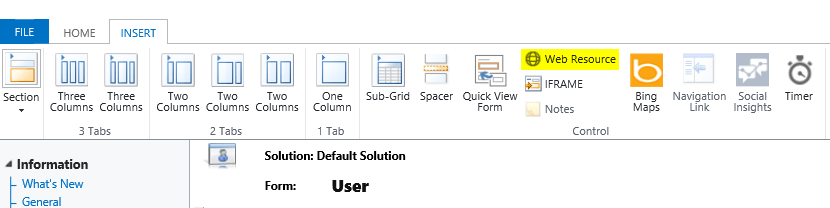
Step 8: Click on Web Resource, under Insert tab on User Information form,

Create Webresource

Step 9: Select the HTML webresource created in Step 3, and provide the name & Label as shown below,

new_userRolesHTML under User Form

Step 10: Click on Ok. Save & Publish the Form.

Step 11: Open any User record, and click on Click Here button to see the User Roles.

Final Output

Happy Coding 🙂

Please share your feedback.