Import Notes with Attachments using Data Import in CRM

Follow the below steps to Import Notes with Attachments for a Sample Contact Record,

Step 1: Created one Sample Contact record with fullname “Arun Potti”.

Step 2: Used the below Notes Template “Note.csv”,

Note-Csv Template

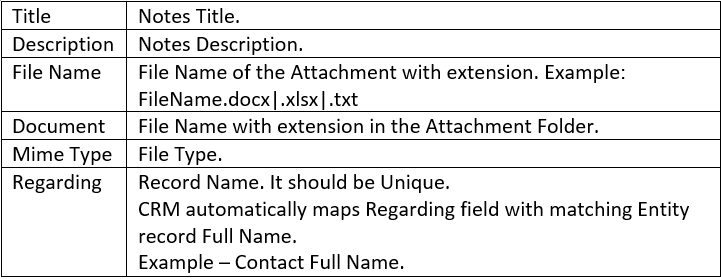
Notes Template Syntax

Click here
to download Notes Template.

Step 3: Create one folder with Name “Attachments” and place all files to Import.

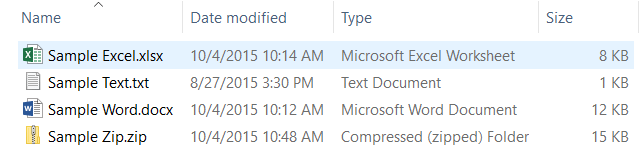
Attachments Folder

Step 4: Zip below files,

  1. Attachments Folder
  2. csv

Attachments - Zip Folder

Click here to download Attachments.zip.

Step 5: Import Attachments.zip using Data Import.

Attachments Output

Solution : Unable to see Action Messages in Plugin Registration Tool

Got one requirement to use Actions and tried to Register Action using Plugin Registration Tool.

But Action messages are not listed and done the below things,

  1. Whether Action is Activated or Not. Action is Activated.
  2. In plugin Registration Tool,
    1. Reloaded Organizations &
    2. Refreshed Messages and Steps.

Finally I Closed and Opened Plugin Registration Tool. Then Action Messages listed in Plugin Registration Tool.

Hope it helps.

Set Posts or Activities or Notes as default Tab under Social Panes in Microsoft Dynamics CRM

We may get some requirements to Make Posts or Activities or Notes as a default tab.

Please follow the below simple steps to make it as default.

Open required entity form to change default tab setting under Social Pane. For demo, I am using Contact Form.

Step 1: Click on Social Pane.

Step 2: Click on Change Properties.

Step 3: You can see Default tab under Activities Tab Properties window. Select the required Activities / Posts / Notes Tab, to make it visible when the form opens.

Step 4: Click on Ok. Save and Publish the Form. Open Contact record to see the default tab setting under Social Pane.

Social Pane

Please provide your valuable comments on this article.

Office 365 Admin Phones App

The Office 365 Admin app empowers you, the Office 365 IT administrator to stay connected with your Office 365 environment on the go. You can now manage your users including resetting their passwords. In addition, you can also read the latest messages from Message Center, the central location for Office 365 service communications and view any active service support requests. A new dashboard allows you to quickly view service health status and more.

For increased security, the Office 365 Admin app supports Windows Azure Directory Multi-Factor Authentication and the option to set a unique application-specific PIN code.

IMPORTANT: You need to have an active Office 365 subscription with administrator user rights to use this app.

Office 365 Admin for Phones App

Upgrade Unified Service Desk from 2013 to 2015

I have imported Unified Service Desk – CRM 2013 SP1 with Product Updates package using USD Package Deployer 2013.

Prerequisite:

Before upgrading USD 2013 to 2015, check for the below solution versions

UIIForMicrosoftDynamicsCRM2011 (3.0.0.X) &
DynamicsUnifiedServiceDesk (1.0),

Update USD - Prerequisite

If you have the above solutions versions in CRM, Follow the below Steps to upgrade USD,

Step 1: Download Unified Service Desk 2015 Package Deployer. Click here and download “CRM2015-7.1-USD-PackageDeployer.exe

Step 2: Extract USD Package Deployer 2015, and goto the below path

USDPackageDeployer\CRM2013SP1withProductUpdatesPackage

Have to import these two files in the next steps,

Update USD - Step 2

Step 3: Open Microsoft Dynamics CRM 2015 Online / Onpremise, goto the below path,

Microsoft Dynamics CRM -> Settings -> Solutions,

Click on Import and import the Solution, UiiForMicrosoftDynamicsCRM2011.

You may encounter the below error while importing. This is due to Plugin Assembly Version change.

If yes, follow Step 4. Otherwise goto Step 6.

Update USD - Step 3

Step 4: Goto Microsoft Dynamics CRM -> Settings -> Customizations, and click on Sdk Message Processing Steps.

Select all Microsoft.uii.Customization.Plugin.XYZ steps and Delete from CRM.

Update USD - Step 4

Step 5: Goto Microsoft Dynamics CRM -> Settings -> Customizations, and click on Plug-in Assemblies.

Select Microsoft.Uii.Customization.Plugin and Delete from CRM.

Update USD - Step 5

Step 6: After deletion, follow Step 3 to import UiiForMicrosoftDynamicsCRM2011 Solution.

After Successful import, you can see version of the imported solution to 3.2.0.154 from 3.0.0.X

Update USD - Step 6

Step 7: Import DynamicsUnifiedServiceDesk solution into CRM,

Once it is imported successfully, you can see the version of the imported solution to 1.2.0.X

Update USD - Step 7

Step 8: Open Unified Service Desk Client and check for its version.

If you have 1.0.0.X version, then follow Step 9 to upgrade USD Client.

Update USD - Step 8

Step 9: Click here and Download Unified Service Desk Client (32 bit or 64 bit).

Step 10: Execute the UnifiedServiceDesk-amd64 exe (I am using 64 bit file), and follow the Wizard. It will automatically upgrade USD client to 1.2.0.X. Open USD Client and check for the version.

Update USD - Step 9

Please provide your valuable comments on this article.

Increase number of records per page in MS CRM

Follow the below process to increase number of records for a particular user,

Supported Way:

Step 1: Open Microsoft Dynamics CRM Online / On-premise. Click on Gear Icon on Top Right Corner. Click on Options.

Step 2: Under General tab, select “Records Per Page” to the required records count per page. (Min: 25 and Max: 250)

Records Per Page

Step 3: Click on OK.

UnSupported Way:

In MS CRM OnPremises, Open Microsoft SQL Server Management Studio.

Right Click on the required MSCRM Organization (OrganizationName_MSCRM) and click on New Query.

For Example, I am providing PAGINGLIMIT = 500 AND FULLNAME = ‘Arun Potti’ in the below query

Copy & Paste the below query and Execute,

UPDATE USERSETTINGS
SET PAGINGLIMIT=500
WHERE SYSTEMUSERID =
(
SELECT
TOP 1
SYSTEMUSERID
FROM
SYSTEMUSER
WHERE FULLNAME ='Arun Potti'
)

Refresh CRM Page and open any Entity or Advanced Find to see the effect.

Provide your valuable feedback on the article.