SetState Request Example Using Javascript

Add the below Functions in Javascript Webresource and be sure to pass correct StateCode and StatusCode for the particular entity.

function callRecordStatus() {
var recordGuid = Xrm.Page.data.entity.getId();
   //StateCode   2 - Disqualified
   //StatusCode 4 - Lost
setRecordStatus ("lead", recordGuid, "2", "4");
}

function setRecordStatus(entitySchemaName, recordGuid, stateCode, statusCode) {
  // create the request
var request = "";
request += "";
request += "";
request += "";
request += "";
request += "";
request += "EntityMoniker";
request += "";
request += "" + recordGuid +"";
request += "" + entitySchemaName + "";
request += "";
request += "";
request += "";
request += "";
request += "State";
request += "";
request += "" + stateCode + "";
request += "";
request += "";
request += "";
request += "Status";
request += "";
request += "" + statusCode + "";
request += "";
request += "";
request += "";
request += "";
request += "SetState";
request += "";
request += "";
request += "";
request += "";
   //send set state request  
$.ajax({
type: "POST",
contentType: "text/xml; charset=utf-8",
datatype: "xml",
url: Xrm.Page.context.getClientUrl() + "/XRMServices/2011/Organization.svc/web",
data: request,
beforeSend: function(XMLHttpRequest) {
XMLHttpRequest.setRequestHeader("Accept", "application/xml, text/xml, */*");
XMLHttpRequest.setRequestHeader("SOAPAction",
"http://schemas.microsoft.com/xrm/2011/Contracts/Services/IOrganizationService/Execute");
},
success: function(data, textStatus, XmlHttpRequest) {
//Add code after changing Status of the record
},

error: function(XMLHttpRequest, textStatus, errorThrown) {
alert(errorThrown);
}
});
}

Note:
Xrm.Page.context.getClientUrl() – New javascript function in CRM 2013 used to get ServerURL.

Please provide your valuable comments on this article.
REST – Delete Example

Delete:

Syntax: SDK.REST.deleteRecord(id, type, successCallback, errorCallback)

Name Type Description
id String A String representing the GUID value for the record to delete.
type String The Schema Name of the Entity type record to delete.For an Account record, use “Account”
successCallback Function The function that will be passed through and be called by a successful response.
Nothing will be returned to this function.
errorCallback Function The function that will be passed through and be called by a failed response.
This function must accept an Error object as a parameter.

Task: Delete an Existing Account using AccountId.

Solution: Add the below Script in “new_sdkOperations” Webresource and click Ok.

Please do check REST – Retrieve Example for Initial Setup

function deleteAccount() {
    if (confirm("Do you want to delete this account record?")) {
        alert("You chose to delete the account record.");
        SDK.REST.deleteRecord(
            "{312B24BA-7CC1-E311-AAEF-D89D67790688}", //Add Existing Account GUID
            "Account",
            function() {
                alert("The account was deleted.");
            },
            errorHandler
        );
    }
}

function errorHandler(error) {
    alert(error.message);
}

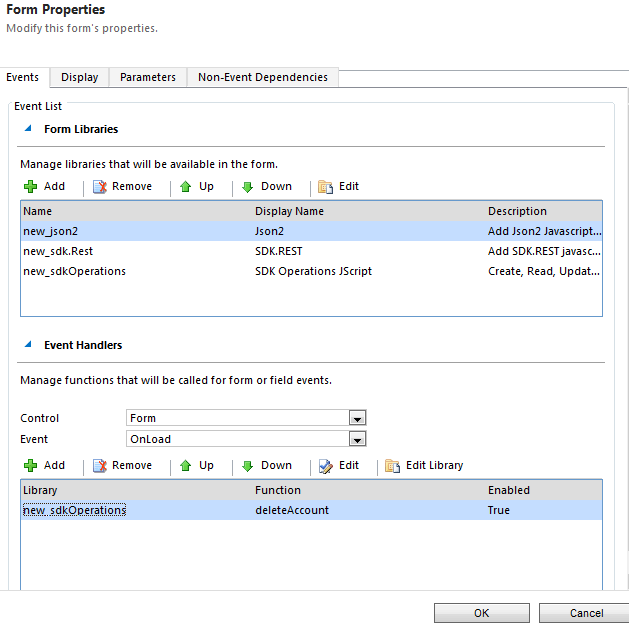
Add OnLoad event in Account Form, Library: new_sdkOperations &function deleteAccount. Save and Publish

REST - Delete Webresource

Output:

REST - Delete Output

Please provide your valuable comments on this article.

REST – Update Example

Update:

Syntax: SDK.REST.updateRecord(id, object, type, successCallback, errorCallback)

Name Type Description
id String A String representing the GUID value for the record to update.
object Object A JavaScript object with properties corresponding to the Schema Names for entity attributes that are valid for update operations.
type String The Schema Name of the Entity type record to retrieve. For an Account record, use “Account”
successCallback Function The function that will be passed through and be called by a successful response.Nothing will be returned to this function.
errorCallback Function The function that will be passed through and be called by a failed response.This function must accept an Error object as a parameter.

Task: Update Phone Number of an Existing Account using AccountId.

Solution: Add the below Script in “new_sdkOperations” Webresource and click Ok.
Please do check REST – Retrieve Example for Initial Setup

function updateAccount() {
var account = {};
account.Telephone1 = "9876543210";
 SDK.REST.updateRecord("{312B24BA-7CC1-E311-AAEF-D89D67790688}", account, "Account", updateSuccessCallback , errorHandler); //Provide Existing Account record GUID
}

function updateSuccessCallback (){
alert("The account record changes were saved");
}

function errorHandler(error) {
alert(error.message);
}

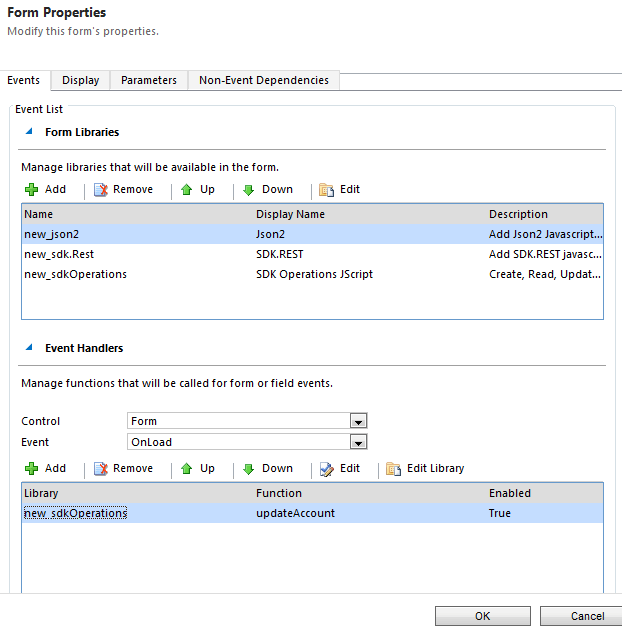
Add OnLoad event in Account Form, Library: new_sdkOperations &function updateAccount. Save and Publish

REST - Update Webresource

Output:

REST - Update Output

Please provide your valuable feedback on this article.

REST – Create Example

Create

Syntax: SDK.REST.createRecord(object, type, successCallback, errorCallback)

Name Type Description
object Object A JavaScript object with properties corresponding to the Schema name of entity attributes that are valid for create operations.
type String The Schema Name of the Entity type record to create.
successCallback Function The function that will be passed through and be called by a successful response. This function can accept the returned record as a parameter.
errorCallback Function The function that will be passed through and be called by a failed response. This function must accept an Error object as a parameter.

Task:Create a Contact Record

Solution: Add the below Script in “new_sdkOperations” Webresource and click Ok.

Please do check REST – Retrieve Example for Initial Setup

function createAccount() {
var account = {};
account.Name = "Arun Potti";
account.Description = "Account was created using SDK.REST.createRecord Method";

 //Set a lookup value
account.PrimaryContactId = {
Id: "FB4F88B0-49B3-E311-9C70-D89D676E8210", //Provide Existing Contact Guid
LogicalName: "contact",
Name: "Maria Campbell (sample)"                          //Provide Existing Contact Name
};

//Set a picklist value
account.PreferredContactMethodCode = {   Value: 2   };

   //Set a money value
account.Revenue = { Value: "2000000.00"   };

   //Set a Boolean value
account.DoNotPhone = true;

  //Add Two Tasks
var today = new Date();
var startDate = new Date(today.getFullYear(), today.getMonth(), today.getDate() + 3);   //Set a date three days in the future.

  //Low Priority Task
var LowPriTask = { Subject: "Low Priority Task", ScheduledStart: startDate, PriorityCode: { Value: 0 } };

//High Priority Task
var HighPriTask = { Subject: "High Priority Task", ScheduledStart: startDate, PriorityCode: { Value: 2 } };      account.Account_Tasks = [LowPriTask, HighPriTask];

//Create the Account

SDK.REST.createRecord(account, "Account", getAccountDetails, errorHandler);
}

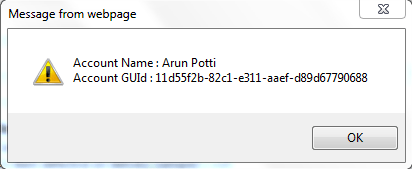
function getAccountDetails(account) {
alert("Account Name : " + account.Name + "\nAccount GUId : " + account.AccountId);
}

function errorHandler(error) { alert(error.message); }

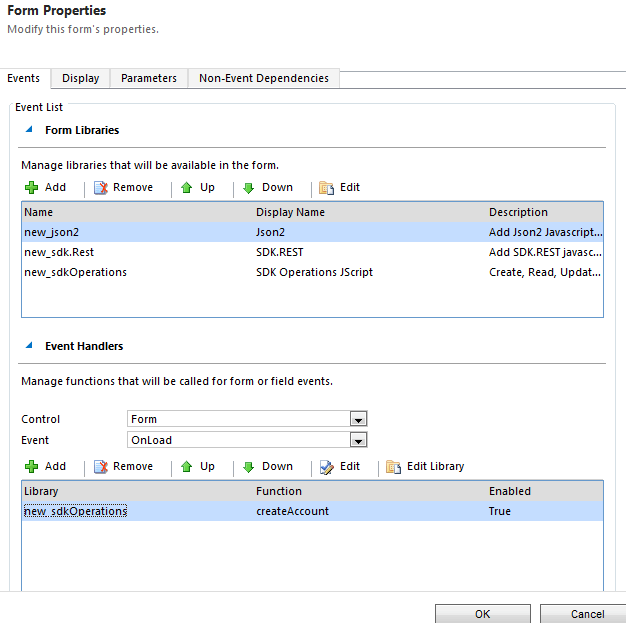
Add OnLoad event in Account Form, Library: new_sdkOperations &function createAccount. Save and Publish

REST - Create Webresource Output

Output:

REST - Create Output

Please provide your valuable comments on this article.
REST – Retrieve Multiple Example

Retrieve Multiple

Syntax: SDK.REST.retrieveMultipleRecords(type, options, successCallback, errorCallback, OnComplete)

Name Type Description
type String The Schema Name of the Entity type record to retrieve.
options String A String that represents the OData System Query Options to control the data returned.
successCallback Function The function that will be passed through and be called for each page of records returned.
This example uses the retrieveContactsCallBack function.
errorCallback Function The function that will be passed through and be called by a failed response.
This example uses the errorCallBack function.
OnComplete Function The function that will be called when all the requested records have been returned.
This example uses the contactsRetrieveComplete function.

Task:  Retrieve all Contacts contains MobilePhone data
Solution: Add the below Script in “new_sdkOperations” Webresource and click Ok.

Please do check REST – Retrieve for Initial Setup.

function retrieveMultipleContacts() {
var options = "$select=FullName,MobilePhone&$filter=MobilePhone ne null"; //Write your own Query to get Records
SDK.REST.retrieveMultipleRecords("Contact", options, retrieveContactsCallBack, errorCallBack, contactsRetrieveComplete);
}

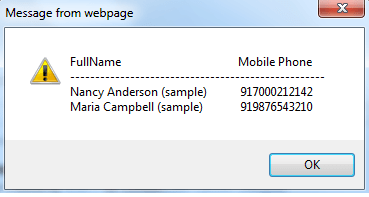
function retrieveContactsCallBack(retrievedContacts) {
var outputString = "";
outputString = "FullName\t\t\tMobile Phone\n";
outputString = outputString + "--------------------------------------------------\n";
for (var i = 0; i < retrievedContacts.length; i++) {
outputString = outputString + retrievedContacts[i].FullName + " \t " + retrievedContacts[i].MobilePhone + "\n";
}
alert(outputString);
}

function errorCallBack(error) {
alert(error.message);
}

// This function is called after all the records have been returned
function contactsRetrieveComplete() {
}

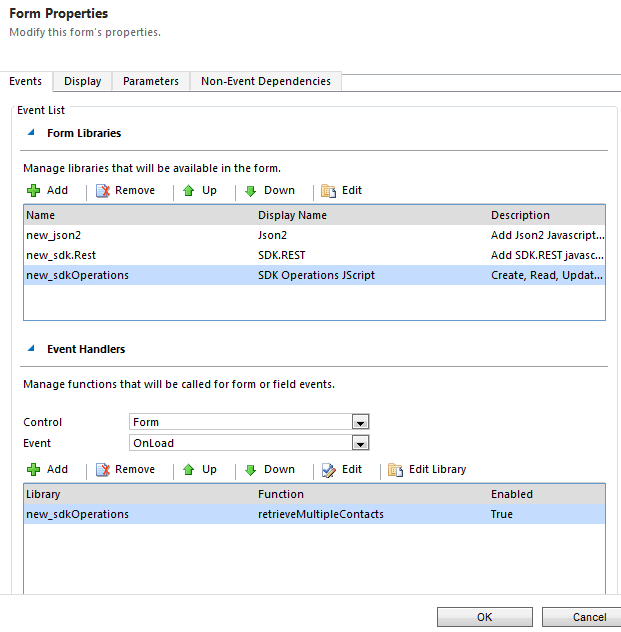
Add OnLoad event in Contact Form, Library: new_sdkOperations & function retrieveMultipleContacts. Save and Publish

Image

Output:
Open any Contact Record to see the below output,

Image

Please provide your valuable comments on this article.

REST – Retrieve Example

REST CRUD (Create, Read, Update and Delete) Operations:

Initial Setup:

Download the Latest SDK.

For CRUD Operations, get the following Script files from the path

SDK\SampleCode\JS\RESTEndpoint\JavaScriptRESTDataOperations\JavaScriptRESTDataOperations\Scripts

Initial Setup

Create two JScript Web Resources

SDK Rest Webresource

Create a JScript Web Resource for CRUD Operations,

SDK Operations JScript

Retrieve Example:

Syntax: SDK.REST.retrieveRecord(id, type, select, expand, successCallback, errorCallback) 

Name Type Description
id String A String representing the GUID value for the record to retrieve.
type String The Schema Name of the Entity type record to retrieve.
select String A String representing the $select OData System Query Option to control which attributes will be returned. This is a comma separated list of Attribute names that are valid for retrieve.
If null all properties for the record will be returned
expand String A String representing the $expand OData System Query Option value to control which related records are also returned. This is a comma separated list of up to 6 entity relationship names
If null no expanded related records will be returned.
successCallback Function The function that will be passed through and be called by a successful response.
This function must accept the returned record as a parameter.
errorCallback Function The function that will be passed through and be called by a failed response.
This function must accept an Error object as a parameter.

 Task:Get the Contact details based on Contact Guid using Retrieve Method

Solution: Add the below Script in “new_sdkOperations” Webresource for Retrieving Contact details based on “ContactId”,

function retrieveContact(ContactId) {
SDK.REST.retrieveRecord(ContactId, "Contact", null, null, getDetails, errorHandler);
}

function getDetails(contact) {
alert("Full Name : "+ contact.FullName + "\n" +
"Company Name : " + contact.ParentCustomerId.Name + "\n" +
"Guid : " + contact.ContactId +"\n" +
"Preferred Method of Contact : " + contact.PreferredContactMethodCode.Value +"\n" +
"Bulk Email : " + contact.DoNotBulkEMail +"\n"+
"Birthday : " + contact.BirthDate
);
}

function errorHandler(error) {
alert(error.message);
}

Save and Publish the Web Resource “new_sdkOperations”.

Add the 3 Web Resources in Contact Entity as follows,

Webresources on Contact Form

Add OnLoad event, Library: new_sdkOperations &function retrieveContact

Attach Onload Event

Pass the Existing Contact Guid as a Parameter to test the function,

Pass Contact Parameter to Form

Save and Publish the entity. Open any record to get the below alert.

Final Output

Please provide your valuable comments on this article.
REST – Introduction

Introduction

REST represents Representational State Transfer. REST is an architectural style in which every resource is addressed by using a unique URI. In Microsoft Dynamics CRM, a resource can be an entity collection or a record.

Microsoft Dynamics CRM implementation of OData

Microsoft Dynamics CRM 2011 uses the Windows Communication Foundation (WCF) Data Services framework to provide an Open Data Protocol (OData) endpoint that is a REST-based data service. This endpoint is called the Organization Data Service. In Microsoft Dynamics CRM, the service root URI is:

[Your Organization Root URL]/xrmservices/2011/organizationdata.svc/$metadata

 Limitations

The OData endpoint provides an alternative to the SOAP endpoint, but there are currently some limitations.

Only Create, Retrieve, Update, and Delete actions can be performed on entity records.

  • Messages that require the Execute method cannot be performed.
  • Associate and disassociate actions can be performed by using navigation properties.


Courtesy : MSDN Microsoft

New Style of Writing Javascript

var Maths = {

    addNumbers: function(one, two) {
        return one + two;
    },

    subNumbers: function(one, two) {
        return one - two;
    },

    mulNumbers: function(one, two) {
        return one * two;
    },

    divNumbers: function(one, two) {
        if (two != 0)
            return one / two;
        else
            return "Division failed. Denominator cannot be Zero";
    }

}

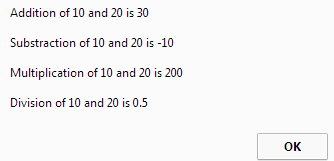
function mathOperations() {
    alert(
        "Addition of 10 and 20 is " + Maths.addNumbers(10, 20) + "\n\n" +
        "Substraction of 10 and 20 is " + Maths.subNumbers(10, 20) + "\n\n" +
        "Multiplication of 10 and 20 is " + Maths.mulNumbers(10, 20) + "\n\n" +
        "Division of 10 and 20 is " + Maths.divNumbers(10, 20)
    );
}

Output:
New Style Javascript

Calculate difference between two dates using Javascript

Difference between two dates

Input String: calculateDays(“01-01-2014″,”12-12-2014”)

Date Format: MM-DD-YYYY

function calculateDays(datetime1, datetime2) {
var oneDay = 1000 * 60 * 60 * 24;        // The number of milliseconds in a day
//Convert the datetime1 and datetime2 to Date object and get Time in milliseconds

var dt1 = new Date(datetime1).getTime();
var dt2 = new Date(datetime2).getTime();

// Calculate the difference in milliseconds
var diff = Math.abs(dt1- dt2); // Difference of Days

return Math.round(diff / oneDay);
}

Auto Number generation using Real Time Workflow in MS CRM 2013

Auto Number generation using Real Time Workflow in MS CRM 2013

Hi All,

I am going to show you the example of Real Time Workflow for Auto Number generation.Follow the below steps to create Auto Number for Contact entity,

Step 1: Create a Custom Entity “Counter” with the following Fields

Counter Value: Whole Number (Range as required)

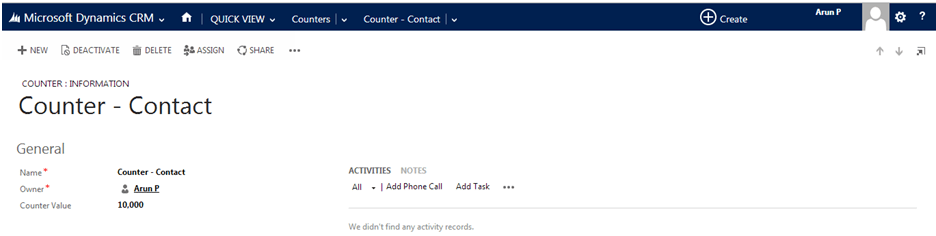
Step 2: Create One Record in Counter entity as follows,

Counter Entity

Step 3: Create N:1 relationship between Contact to Counter entity as follows,

Contact to Counter realtionship

Step 4: Create “Contact ID” field in Contact entity as follows,

Contact Id field creation in Contact Entity

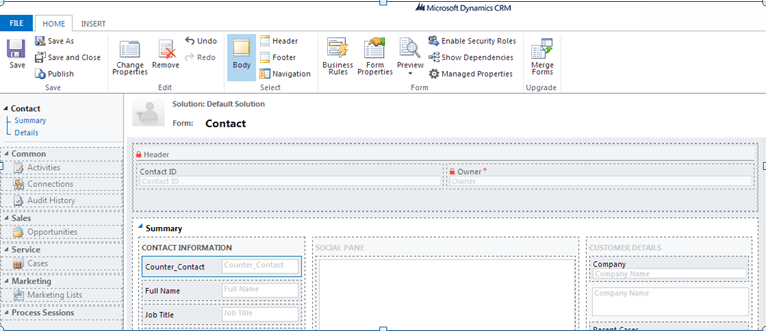
Step 5: Place “Contact ID” and “Counter_Contact” fields on the Contact entity form and hide them,

Contact Form

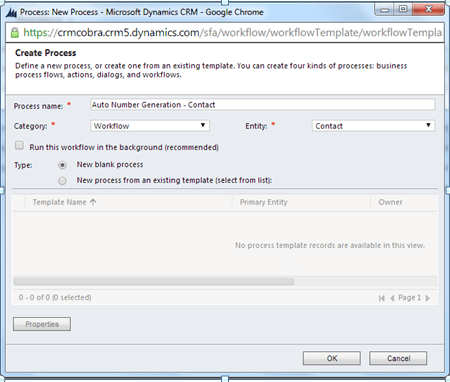
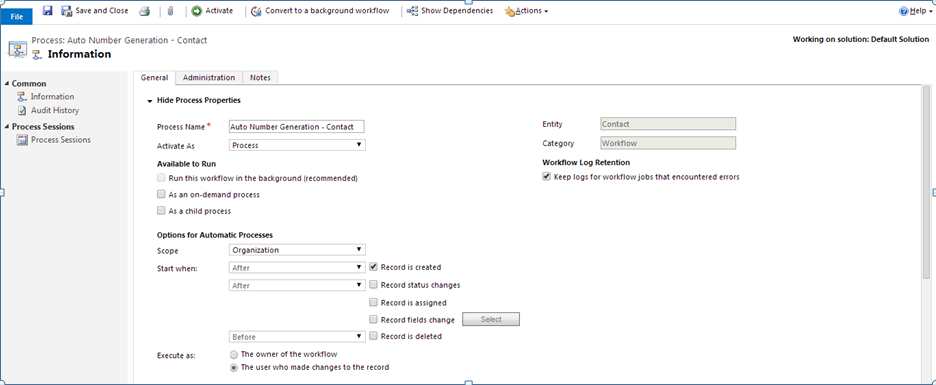
Step 6: Create a Real time workflow as follows,

Workflow Wizard
Workflow Creation

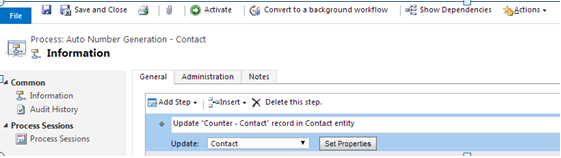
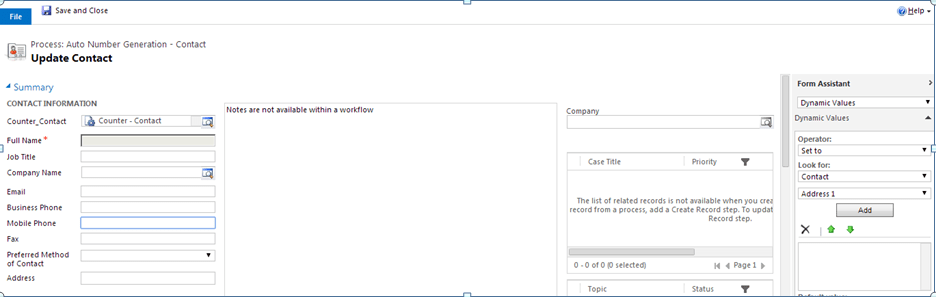
Step 7: Create a step to Update “Counter-Contact” record in Contact entity as follows,

Workflow Step 1
Workflow Step 1.1

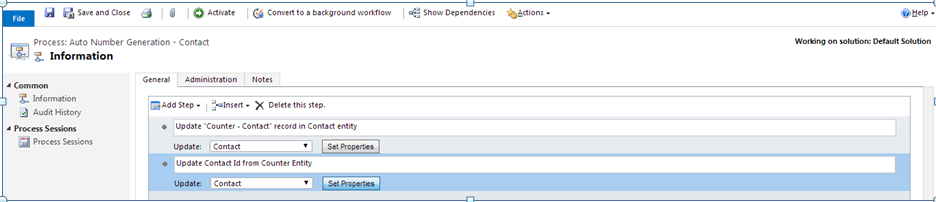
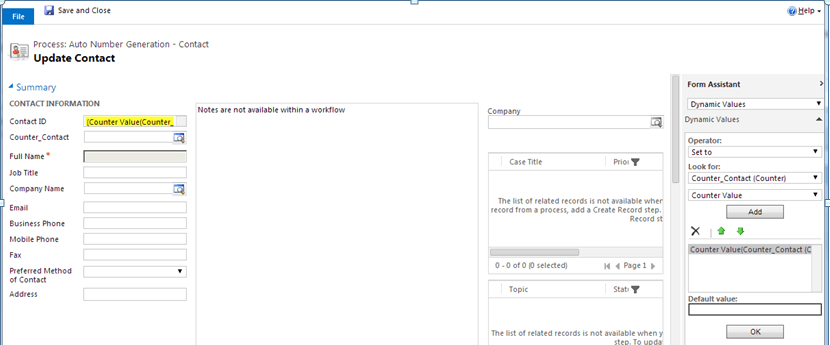
Step 8: Update Counter Value from Counter entity as follows,

Workflow Step 2
Workflow Step 2.1

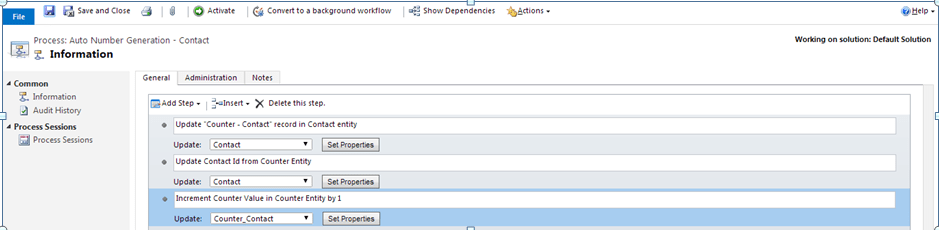
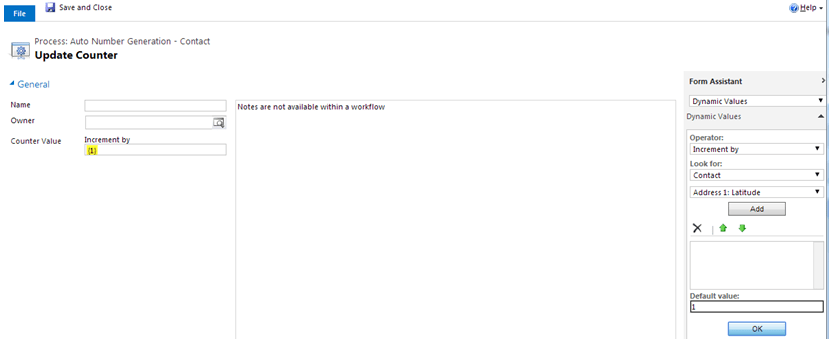
Step 9: Update Counter Value by 1 in Counter entity

Workflow Step 3
Workflow Step 3.1

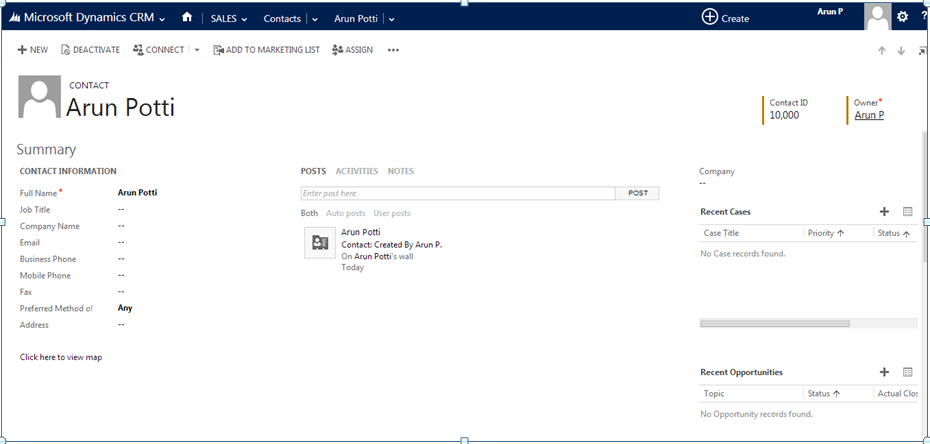
Step 10: Activate the Process and Create Contact Record

Auto Number Generation

Please provide your valuable comments.