
Follow the simple example to create HTML webresource in CRM form.
Task: Create a HTML webresource, to show list of Security Roles associated to User in User (systemuser) record
Solution: Follow the below steps,
Step 1: Should include Jquery webresource in the HTML Page. Download the latest CRM SDK &Goto the below path,
SDK\SampleCode\JS\RESTEndpoint\JQueryRESTDataOperations\JQueryRESTDataOperations\Scripts

Step 2: Browse for jquery_1.9.1.min and Create “new_ jquery_1.9.1.min” Jscript Webresource as shown below,

Step 3: Create HTML Webresource “new_userRolesHTML”,

Step 4: Click on Text Editor, Copy & Paste the below code, or Click here to get HTML code
<html>
 <head>
 <title>User Security Roles</title>
 </head>
 <body>
 <script src="ClientGlobalContext.js.aspx" type="text/javascript"></script>
 <script src="../WebResources/new_jquery_1.9.1.min" type="text/javascript"></script>
 <script type="text/javascript">
 function getLoggedInUserRoles() {
 var context = GetGlobalContext();
 var userRecordId = parent.Xrm.Page.data.entity.getId();
 retrieveMultiple("SystemUserSet", "?$select=systemuserroles_association/Name&$expand=systemuserroles_association&$filter=SystemUserId eq (guid'" + userRecordId + "')", getSecurityRoleNames, null, null);
 }
function retrieveMultiple(odataSetName, filter, successCallback, errorCallback, _executionObj) {
 var context = GetGlobalContext();
 var serverUrl = context.getServerUrl();
 var ODATA_ENDPOINT = "/XRMServices/2011/OrganizationData.svc";
 //odataSetName is required,
 if (!odataSetName) {
 alert("odataSetName is required.");
 return;
 }
//Build the URI
 var odataUri = serverUrl + ODATA_ENDPOINT + "/" + odataSetName;
//If a filter is supplied, append it to the OData URI
 if (filter) {
 odataUri += filter;
 }
//Asynchronous AJAX function to Retrieve CRM records using OData
 $.ajax({
 type: "GET",
 async: true,
 contentType: "application/json; charset=utf-8",
 datatype: "json",
 url: odataUri,
 beforeSend: function (XMLHttpRequest) {
 //Specifying this header ensures that the results will be returned as JSON.
 XMLHttpRequest.setRequestHeader("Accept", "application/json");
 },
 success: function (data, textStatus, XmlHttpRequest) {
 if (successCallback) {
 if (data && data.d && data.d.results) {
 successCallback(data.d.results, textStatus, XmlHttpRequest);
 } else if (data && data.d) {
 successCallback(data.d, textStatus, XmlHttpRequest);
 } else {
 successCallback(data, textStatus, XmlHttpRequest);
 }
 }
 },
 error: function (XmlHttpRequest, textStatus, errorThrown) {
 if (errorCallback)
 errorCallback(XmlHttpRequest, textStatus, errorThrown);
 else
 errorHandler(XmlHttpRequest, textStatus, errorThrown);
 }
 });
 }
 function errorHandler(xmlHttpRequest, textStatus, errorThrow) {
 alert("Error : " + textStatus + ": " + xmlHttpRequest.statusText);
 }

 function getSecurityRoleNames(data, textStatus, XmlHttpRequest) {
 var totalCount = data[0].systemuserroles_association.results.length;
 var userString = null;
 if (totalCount > 0) {
 userString = "";
 for (var i = 0; i < totalCount; i++)
 userString = userString + data[0].systemuserroles_association.results[i].Name + "\n";
 document.getElementById("userRoles").innerText = userString;
 } else
 alert("No role associated with the user");
 }
 </script>
 <style>
 h5 {
 font-family: Segoe UI,Tahoma,Arial;
 font-weight: bold;
 font-variant: normal;
 color: #000080;
 text-decoration: underline;
 }
 p {
 font-family: Segoe UI,Tahoma,Arial;
 font-size: 13px;
 }
 </style>
 <table>
 <tr><td><h5>Security Roles</h5></td></tr>
 <tr><td><p id="userRoles"></p></td></tr>
 <tr><td> </td></tr><tr>
 <td><button onclick="getLoggedInUserRoles()">Click here</button></td></tr>
 </table>
 </body>
 </html>
Step 5: Save and Publish “new_userRolesHTML” Webresource.
Step 6: Goto Microsoft Dynamics CRM –> Settings –> Customization –> Customize the System.
Step 7: Under Entities –> User –> Forms, open Information form as highlighted below,

Step 8: Click on Web Resource, under Insert tab on User Information form,
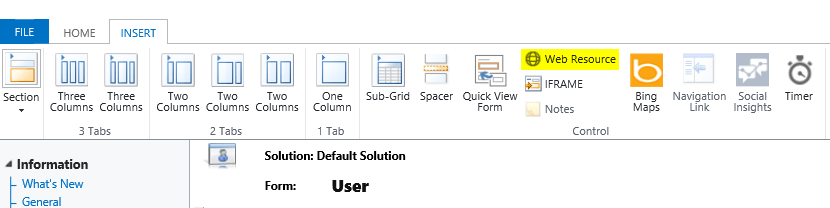
Step 9: Select the HTML webresource created in Step 3, and provide the name & Label as shown below,

Step 10: Click on Ok. Save & Publish the Form.
Step 11: Open any User record, and click on Click Here button to see the User Roles.

Happy Coding 🙂
Please share your feedback.
Discover more from Arun Potti's Power Platform blog
Subscribe to get the latest posts sent to your email.
Thank you very much for this post. I had to change getServerURL() to getClientURL() to let it work in CRM 2015 Update 1.
Very Nice explanation …Thank You soooooo much
Thank you Muraga :):):)
Great Post!
Tnank you very much Muraga >_<
I think this post is a good example about ajax use in dynamics crm form page.
I use change two places with your code in order to let it works(dynamics crm 2015 online).
1
before:var userRecordId = parent.Xrm.Page.data.entity.getId();
after:var userRecordId = var userRecordId = Xrm.Page.context.getUserId();
2
before:var serverUrl = context.getServerURL();
after:var serverUrl = context.getClientUrl();
Wow, attractive site. Thnx ..
Thank you 🙂